HEIC to JPG converter

Turn iPhone and iPad photos (HEIC) into JPG that opens in every program, phone and website.

Save as
Lower = smaller files
90
Icon
  • Sizes inside the iconWindows and browsers pick the one they need
  • Colours32-bit soft edges, or 8-bit
  • Favicon packfavicon.ico, apple-touch-icon, 192 and 512 px PNG, a web manifest and the HTML lines to paste
Animation When you add several pictures
  • Make
  • Each picture shows for
  • Repeat
  • Frame sizeOthers are fitted in
Extra settings All optional
  • SizeSide, width, height or %
  • Max file sizeFinds the best quality
  • BackgroundFor transparent parts
  • Photo detailsDate, camera, place, author
  • Created with FormatYard.comIn every file. EXIF remover takes it out Locked
Edit: crop, turn, colour, fix
  • Crop edgesPixels, or a plain border
  • TurnRotate or mirror
  • ColourGrey, black and white, sepia
  • FixLevels, sharpen, straighten
Print: DPI and CMYK
  • DPIPrint size in the file
  • Colours forScreens, print shop or grey

HEIC to JPG

Convert many photos at once, no sign-up

Your file stays on your deviceConverted in your browser

v1.0 Updated 27 Oct 2026 What's new

01

How to convert HEIC to JPG

Three steps, the same on Windows, Mac, iPhone and Android. Nothing to install, and your photos never leave your device.

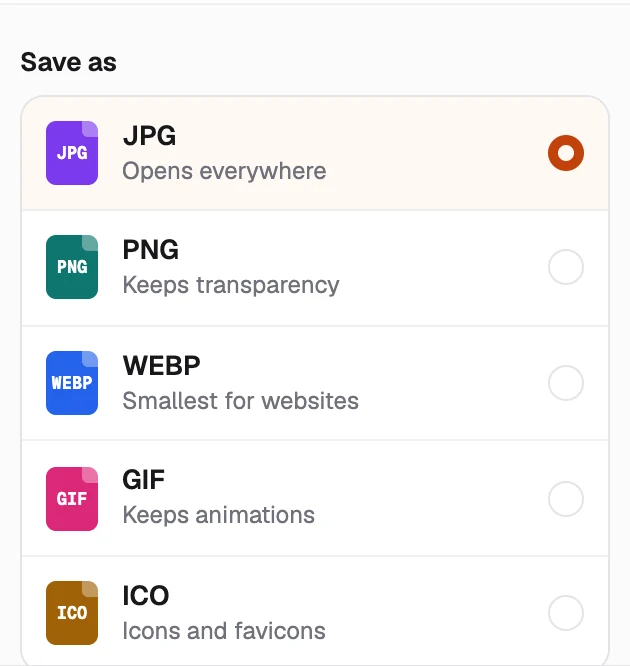
  1. The Save as list with JPG picked, above PNG, WEBP, GIF and ICO
    Step 1

    Pick JPG

    JPG is already picked under Save as. Quality 90 keeps every detail you can see, and a lower number gives smaller files.

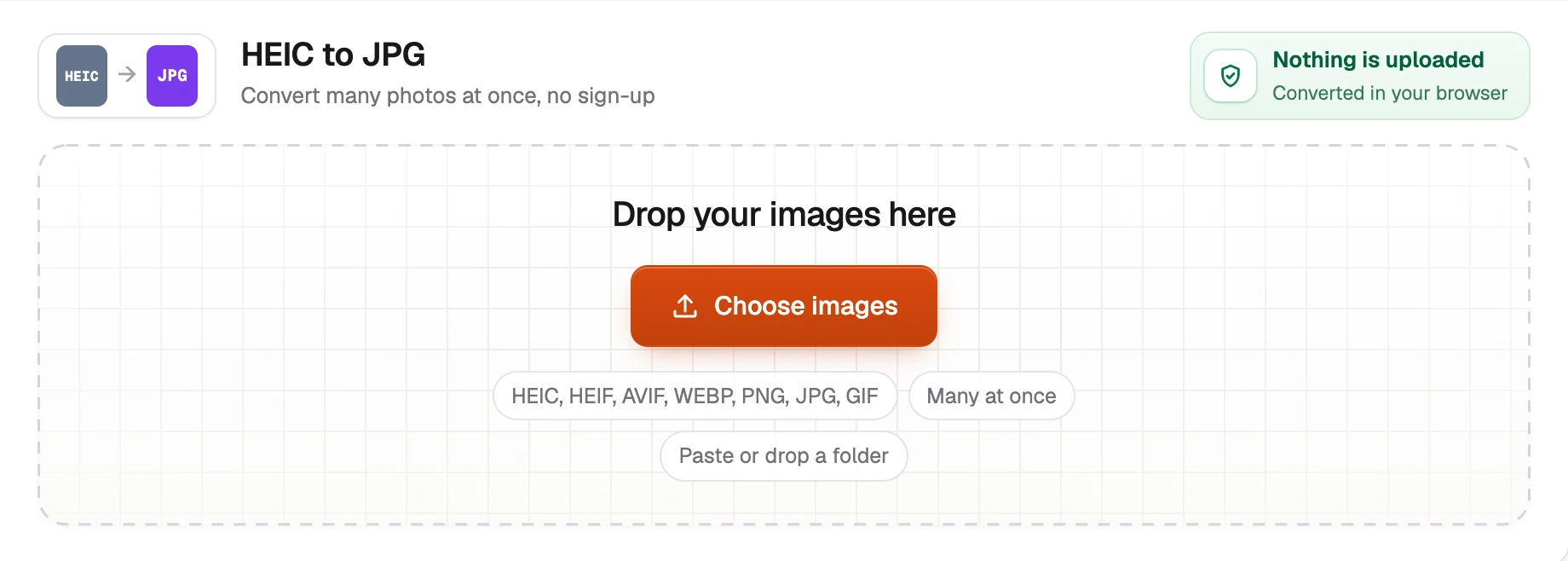
  2. The HEIC to JPG header with the green Nothing is uploaded badge, and the drop box with the Choose images button
    Step 2

    Add your HEIC photos

    Drop them on the box or press Choose images. A whole folder works too, and so does pasting with Ctrl+V or ⌘V.

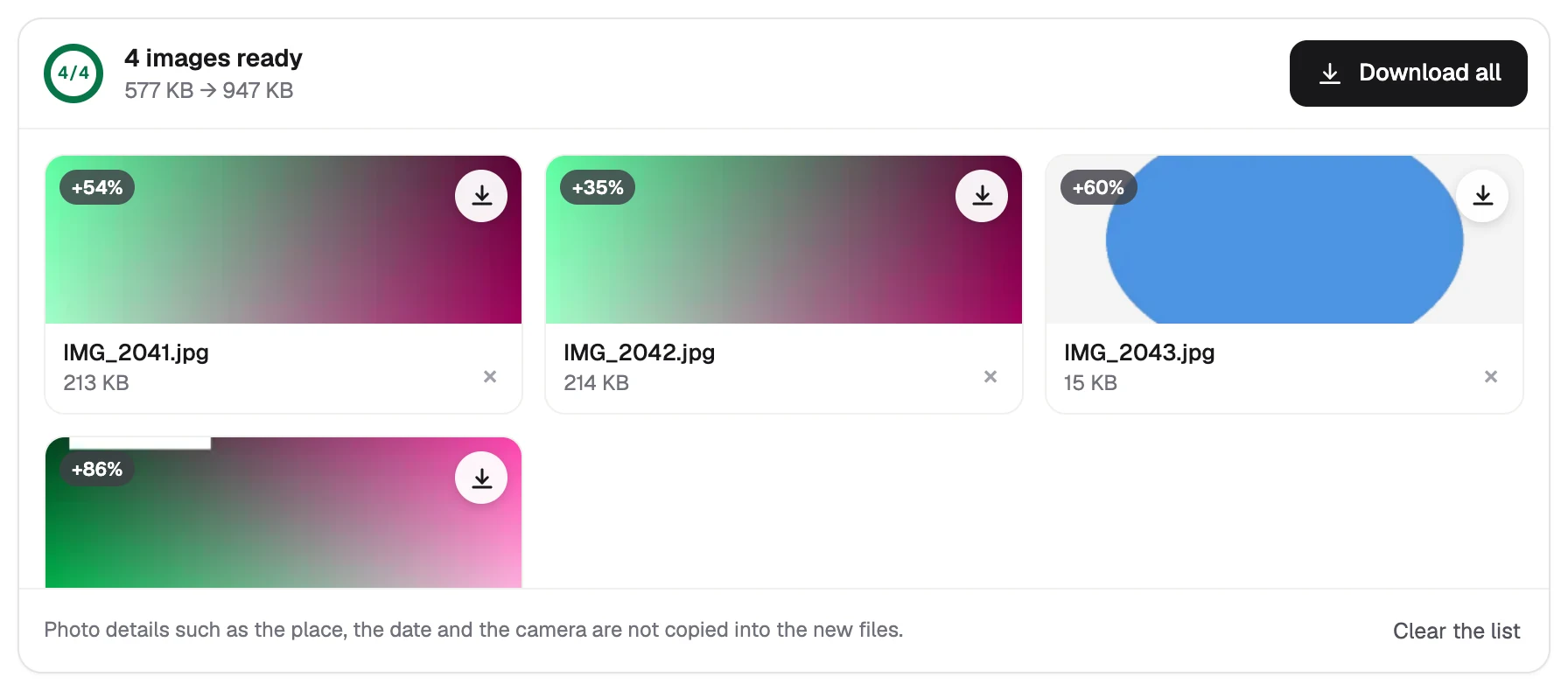
  3. Four converted JPG files with their pictures and sizes, and the Download all button
    Step 3

    Download the JPG files

    Each photo has its own download button. Download all saves them together in one ZIP file.

02

Other ways to convert HEIC to JPG

Your computer or phone may already do it. Here is what each one has built in, and where it stops.

Windows 10 and 11

Convert HEIC to JPG on Windows

  1. Right-click the photo and choose Open with › Photos.
  2. Click the ··· menu at the top and choose Save as.
  3. Pick .jpg as the file type and click Save.

If Photos can't open the file, install the free HEIF Image Extension from the Microsoft Store. Some PCs also need HEVC Video Extensions, and Photos saves one picture at a time.

macOS

Convert HEIC to JPG on a Mac

  1. In Finder, select one or more HEIC photos.
  2. Control-click and choose Quick Actions, then More › Convert Image.
  3. Pick JPEG and an image size, then confirm.

For a single photo you can also open it in Preview, choose File › Export and pick JPEG.

iPhone and iPad

Convert HEIC to JPG on an iPhone

  1. Open this page in Safari and tap Choose images.
  2. Pick the photos from your library.
  3. Tap Download all, or save them one by one.

iPhone has no Save as JPG button for photos it already took. To take new photos as JPG, see stop saving HEIC below.

Android

Convert HEIC to JPG on Android

  1. Open this page in Chrome and tap Choose images.
  2. Pick the HEIC files from Files or Downloads.
  3. Tap Download all to save the JPG files.

Android itself has no Save as JPG button for HEIC photos. Some Samsung phones convert when sharing, but only one photo at a time.

03

Convert many HEIC files at once

Drop a whole holiday at once, with no daily limit and no cap on the number of files. Nothing waits in a queue on a server, because your own device does the work.

  • A folder in one go. Drag the folder from your desktop and every HEIC inside is picked up.
  • Names stay the same. IMG_2041.HEIC becomes IMG_2041.jpg, so nothing gets mixed up.
  • One ZIP at the end. Download all saves every JPG in a single file.

04

What is a HEIC file?

HEIC is the photo format iPhones and iPads have used since iOS 11 in 2017, compressed with HEVC (H.265) like 4K video. That is why it takes much less space than a JPG that looks the same.

Apple devices open HEIC without a second thought. Many websites, upload forms, older Windows PCs and office programs do not, and that is when a photo needs to become a JPG.

Why are my photos HEIC and how do I stop it?

iPhone 7 and later save HEIC when Settings › Camera › Formats is set to High Efficiency, which is the default. To take new photos as JPG instead:

  1. Open Settings and tap Camera.
  2. Tap Formats, then Most Compatible.

Photos you already took stay HEIC. When you AirDrop, message or email a photo to a device that can't read HEIC, the iPhone may send a JPG by itself.

05

HEIC vs JPG

HEICJPG
File sizeSmaller: 1.6 MB for a 12 MP iPhone photo in our testLarger: 2.5 MB for the same photo at quality 90
Opens onApple devices, plus Windows and Android with extra supportEvery phone, computer and program
Websites and upload formsOften refusedAccepted everywhere
Colour depthUp to 10-bit, wide colour, HDR8-bit, standard colour
TransparencyPossibleNo (use PNG)
Best forKeeping photos on Apple devicesSharing, uploading and printing

06

Does converting HEIC to JPG reduce quality?

Very little, and not in a way you can see at quality 90. JPG compresses the picture again, so fine details change slightly, while colours, sharpness and size stay as they were.

Two things do change. Wide colour and HDR brightness become standard colour, so the photo looks the same on every screen.

The JPG also comes out bigger than the HEIC, because JPG compresses less well. For pixels that are exactly the same, pick PNG, though the file gets far bigger.

Want a JPG no bigger than the HEIC? Set Quality to 75: in our test it came out at 1.4 MB, and the change was still too small to see.

One 12 MP iPhone photo, measured
HEIC from the iPhone
1.6 MB
JPG at quality 90
2.5 MB
JPG at quality 75
1.4 MB
PNG, every pixel exact
16.1 MB

At quality 90 the colours differ from the exact PNG by less than 1% on average. Converted in Chrome on an older two-core laptop in about 5 seconds.

07

Common problems and fixes

I renamed .heic to .jpg and it won't open

Renaming changes only the name, and the picture inside is still HEIC. It has to be converted, which is what the tool above does.

Windows says it needs an extension

Windows reads HEIC only with the HEIF Image Extension and, on some PCs, HEVC Video Extensions. The converter here needs neither.

The photo comes out sideways

iPhones store the turn of a photo separately from the picture. The converter applies it, so the JPG stands the right way up.

The JPG is bigger than the HEIC

That is normal, because JPG compresses less well. Set Quality to 75 for about the HEIC's size, or use Max file size under Extra settings.

The colours look a little flatter

HDR and wide colour are made to fit standard colour, which every screen shows the same way. Bright highlights may look calmer.

A Live Photo lost its movement

A JPG holds one picture, so the still photo is kept. The movement is a separate video that stays on the iPhone.

FAQ

Common questions

Short answers about what the converter keeps and what stays private.

Are my photos uploaded anywhere?

No. The converter runs inside your browser, so your HEIC files are read and the JPG files are made on your own device. Nothing is sent to a server.

Is it free, and is there a limit?

It is free, with no sign-up, no watermark, no daily limit and no file size limit set by us. Very large photos depend on how much memory your device has. If one is too big, it is saved smaller and the list says so.

Is JPG the same as JPEG?

Yes. JPG and JPEG are the same format, and .jpg and .jpeg are two spellings of the file ending. The converter saves .jpg, which every program accepts.

Do the date, place and camera details carry over?

Only if you want them to. Photo details such as the place, the date and the camera are left out by default, which is safer when you share. Turn on Keep photo details under Extra settings to keep them.

Can I convert HEIC to JPG on my iPhone?

Yes. Open this page in Safari, tap Choose images, pick your photos and tap Download all. It works the same on iPad and on Android phones in Chrome.

Can I make the JPG files smaller?

Yes. Quality 75 gives a JPG about the size of the HEIC with no change you can see, and Size or Max file size under Extra settings go smaller still.

Can I put the photos into one PDF?

Yes, with Images to PDF: drop the HEIC photos, drag them into order, and each one becomes a page of one PDF.

Which files work?

HEIC and HEIF photos from iPhones, iPads, Macs and Android phones, including photos with transparency. The converter reads them inside your browser, and Safari reads them by itself.

More image tools